LinkedIn Sales Navigator 2026 — New Features
Two Sales Navigator updates in 2026: the September release brings alerts into Microsoft Teams, your CRM and LinkedIn notifications and improves search, while the April one added the company page visitors filter, relationship maps for corporate groups and shared account searches.

Rafal Szymanski
I implement LinkedIn and Sales Navigator in companies so they turn a profit.
I've been training people in LinkedIn since 2016 — more than 5,000 of them, across 200+ B2B companies. Founder of B2B Marketing.AI, a CRM platform for advanced LinkedIn users. I help sales and marketing teams turn LinkedIn into a predictable source of leads. I've spoken about LinkedIn at the biggest conferences, including I Love Marketing, InfoShare and Effie, and picked up a few awards along the way.
Published On Updated On

Update, September 26, 2026
On September 22, 2026 LinkedIn shipped another big Sales Navigator release. I cover it in a new section below, together with a table of which feature is in which plan. Two of the April features (the company page visitors filter and relationship maps for corporate groups) are listed in the release notes as shipped in April 2026, so their descriptions further down still hold.
In short — what the April 2026 update brings
Three new Sales Navigator features together push the tool away from individual prospecting and toward team collaboration, multi-threading, and intent signals generated by your company page. The “Who Viewed My Company Page” filter is now available across all plans (including Core), Relationship Map now supports leads from multiple companies on a single map, and account searches can be shared with colleagues in one click.

September 2026: Sales Navigator where you already work
The September release is called “It works where you work” and has one idea: Sales Navigator alerts and suggestions should reach sellers where they spend the day anyway, meaning Microsoft Teams, the CRM and regular LinkedIn notifications. On top of that LinkedIn improved search and warm introductions. LinkedIn announced it on September 22, 2026 and described the details in the July to September 2026 release notes.
What do you get on your plan? The headline items (Teams, Lead IQ in the CRM) are Advanced Plus only. The rest, including search and warm introductions, is available on all three plans.
| Feature | Core | Advanced | Advanced Plus |
|---|---|---|---|
| Sales Navigator for Microsoft Teams | ❌ | ❌ | ✅ |
| Lead IQ in the CRM | ❌ | ❌ | ✅ |
| Signals in LinkedIn notifications | ✅ | ✅ | ✅ |
| Personalized onboarding | ✅* | ✅ | ✅ |
| Better alerts and weekly email | ✅ | ✅ | ✅ |
| Search that understands intent | ✅ | ✅ | ✅ |
| Warm introductions in search results | ✅ | ✅ | ✅ |
| “Viewed your Company Page recently” filter (since April) | ✅ | ✅ | ✅ |
| Relationship maps for corporate groups (since April) | ❌ | ✅ | ✅ |
| Admin control of notes and calls logging | ❌ | ❌ | ✅ |
Source: the availability table in the July to September 2026 Sales Navigator release notes. *LinkedIn contradicts itself on onboarding: the table gives it to all plans, while the feature description says only Advanced and Advanced Plus users who bought through a LinkedIn account rep get it. The help article adds that it is rolling out gradually.
Sales Navigator for Microsoft Teams
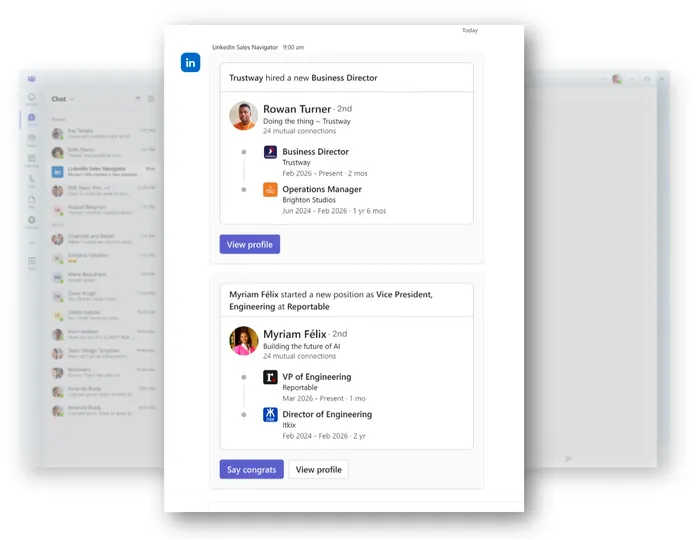
Decision-maker alerts land in a Teams chat: a new decision maker at a saved account, a promotion, a departure and new results for a saved search, each with a link back to Navigator. LinkedIn says that in beta these alerts were three times more likely to lead to action than regular ones. The catch is big for European teams: for now there are no alerts about people located in the European Economic Area, Switzerland or the UK. An IT admin installs the app in Teams first, and only then can a seller connect their account. Details: Sales Navigator in Microsoft Teams.
Lead IQ in the CRM
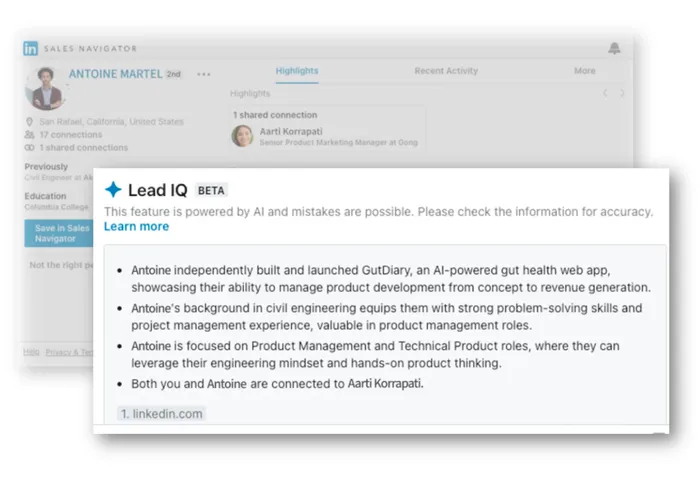
Lead IQ, the AI-generated lead summary, now shows up in the Sales Navigator view embedded in the CRM: interests, recent activity, shared connections and company priorities. It needs Advanced Plus and a CRM Sync connection with Salesforce, HubSpot, Microsoft Dynamics or Oracle. Will it work if your LinkedIn is in Polish or German? No, for now only when your LinkedIn language is set to English. More, with screenshots from my account: Lead IQ in the CRM.
Sales Navigator signals in LinkedIn notifications
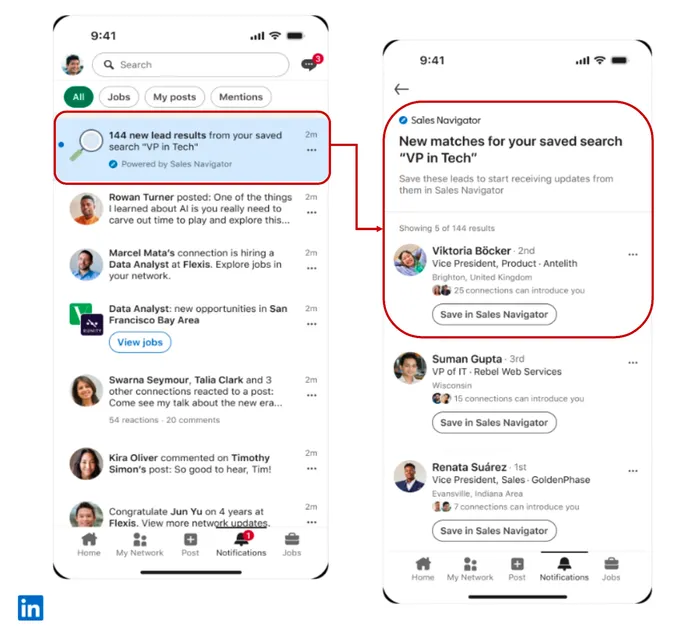
Some alerts now arrive as regular LinkedIn notifications: a saved lead being promoted or changing companies, a senior hire at a saved or CRM account, and new saved search results. It works on all plans, so this is the change most people will actually see. How it looks on my account: Sales Navigator alerts in LinkedIn notifications.
Personalized onboarding
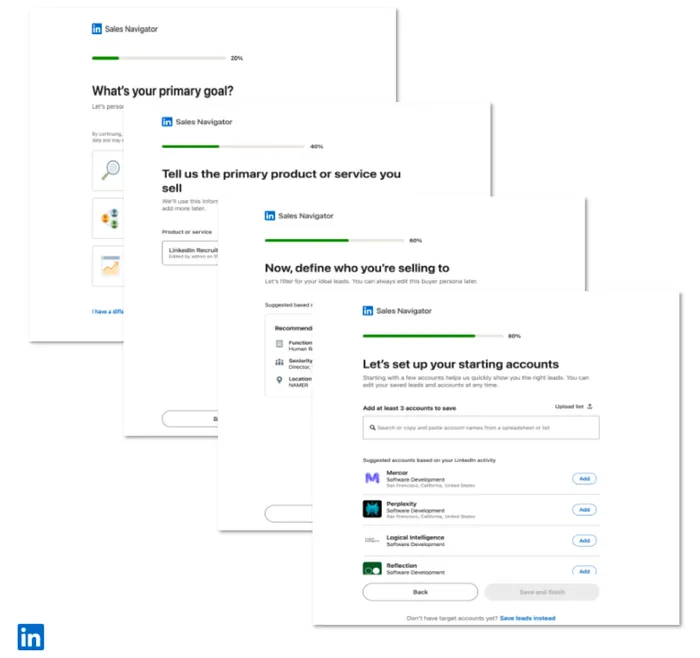
New users answer four questions at the start: their goal, what they sell, who the ideal buyer is and which companies they target (at least three, CSV upload possible). Sales Navigator uses the answers to tune recommendations, alerts and search results. You can change them later in settings. Who gets it? New users, and not all of them at once, because LinkedIn is rolling it out gradually. How to go through it properly (and how to force it on an old account): Sales Navigator personalized onboarding.
Better alerts and a rebuilt weekly email
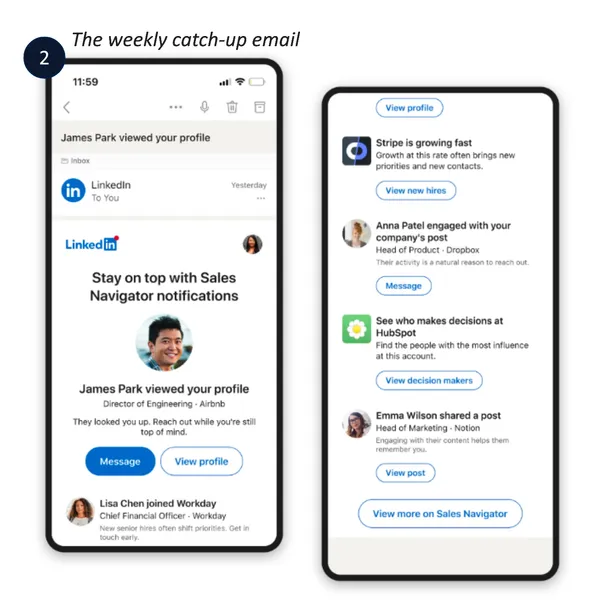
Alerts about leads tied to your open CRM opportunities rank higher, weighing deal activity and value. Why? So live deals stop competing for attention with every other saved lead. Updates from one very active person are consolidated so they don’t bury the rest of the list. The weekly catch-up email now draws on 22 alert types instead of 13 and orders them by what people actually click. More, with the lead lists I recommend in training: Sales Navigator alerts after the update.
Search that understands intent
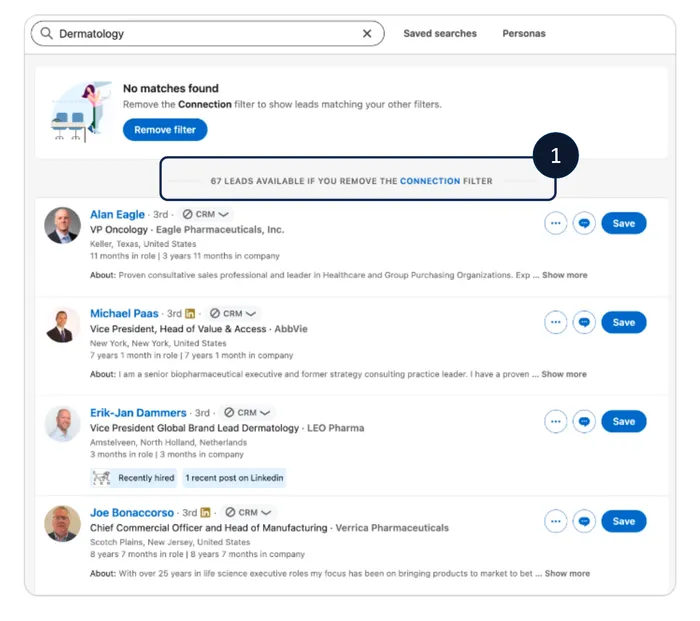
You describe the buyer, and Sales Navigator looks for people who match the description, not just profiles containing your words. Seniority and function filters are, according to LinkedIn, more than 30% more precise. And when a search returns an empty page? Navigator relaxes the filter that blocks results, tells you which one it was and shows the closest matches. LinkedIn says the share of empty searches dropped from 14% to 8%. What works in my tests and what gets in my way: Sales Navigator search 2026.
Warm introductions right in search results
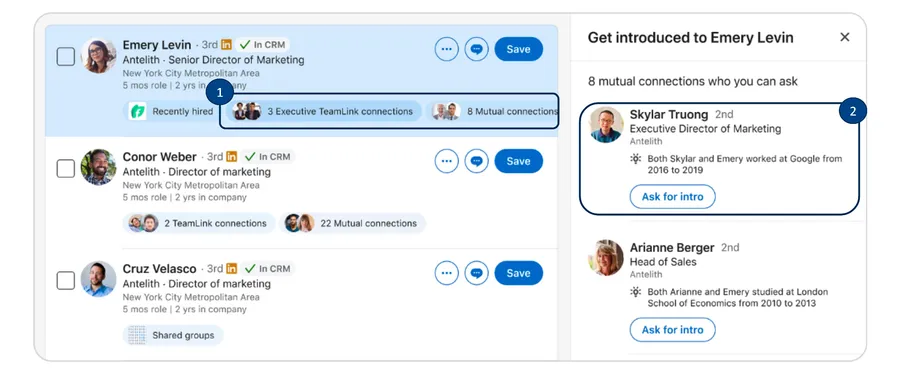
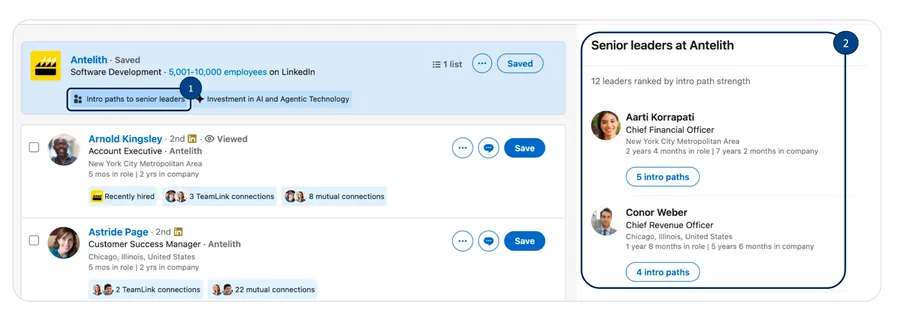
What changed? The list of people who can introduce you used to live on the lead page, and now it is right in search. Leads in the results get badges with the number of shared and TeamLink connections, and a click opens the list of people who can introduce you, sorted by relationship strength and with a reason (for example, having worked at the same company). At the account level there is a new badge listing senior leaders you have a path to. Details: warm introductions in Sales Navigator.
Activity logging control for admins
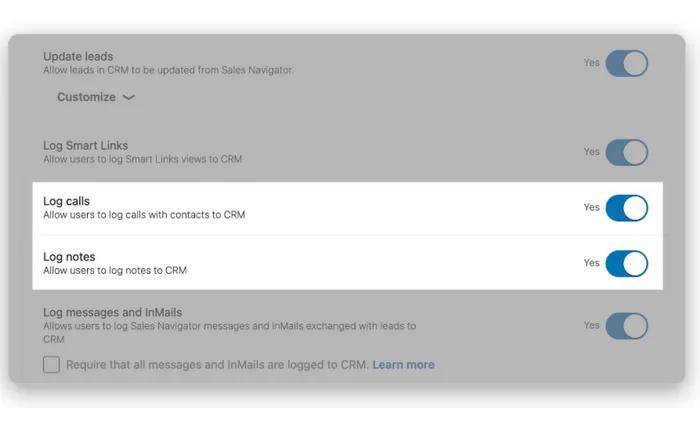
On Advanced Plus, an admin turns notes and calls logging to the CRM on or off for all users at once, from a single settings page. More in the post on activity logging controls.
Below is the April update, two of whose features LinkedIn repeated in the September release notes.
Why these three updates matter more than they look
For several quarters now, LinkedIn has been steadily reshaping Sales Navigator from “a better LinkedIn search” into a full-fledged B2B sales process system. After Account IQ, Relationship Map (Q4 2023), and Relationship Explorer, the direction is clear: modern B2B selling rests on buying committees averaging 11 people (Gartner data, cited by LinkedIn itself) and on intent signals scattered across hundreds of micro-interactions.
The April 2026 update fits this direction with three concrete additions:
- Who Viewed My Company Page filter — a new filter in Lead Search that lets you find people who visited your company page in the last 90 days (requires opt-in by the visitor).
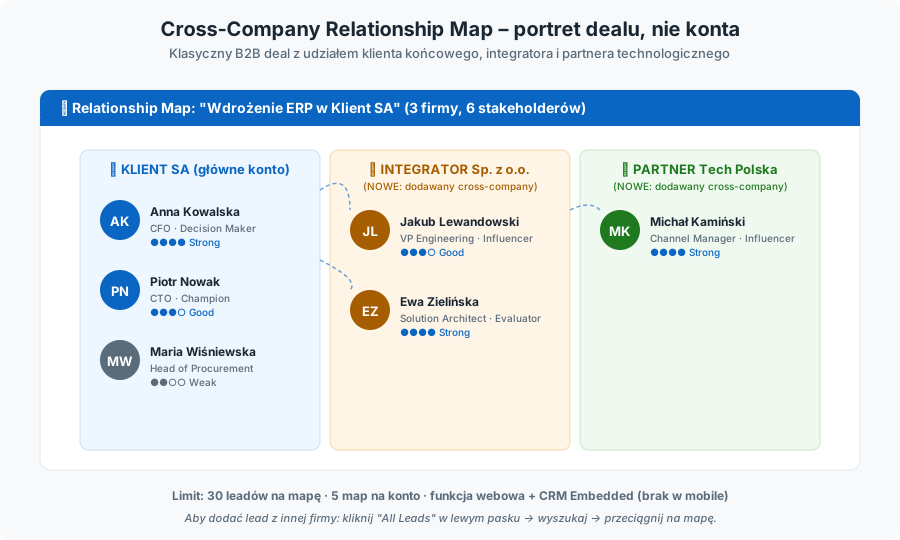
- Cross-Company Lead Support in Relationship Map — the Relationship Map now supports leads from multiple companies at once, thanks to the new “All Leads” tab in the left panel.
- Share Account Searches — you can now share a configured account search (Account Search) with colleagues directly from the filter panel.
Methodological note
LinkedIn Sales Navigator’s official release notes are published quarterly at the same fixed Help Center URL. Share Account Searches was already documented in the January–March 2026 report and is being progressively expanded in the April update, alongside the other two new features. The Who Viewed My Company Page filter is an evolution of existing Buyer Intent signals around company page visits, and Cross-Company Relationship Map is the first noticeable change to the Relationship Map concept since its Q4 2023 launch.
1. Who Viewed My Company Page filter
What it is and what it actually changes

Before April 2026, Sales Navigator already had two closely related ways of watching “warm” leads:
- “Following your company” filter — showed people following your company page.
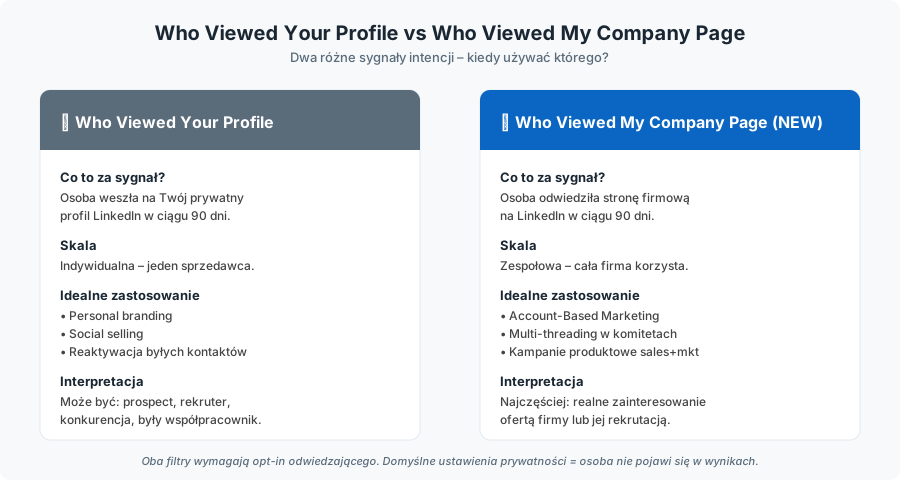
- “Viewed your profile recently” filter — showed people who visited your personal profile in the last 90 days.
- Buyer Intent Alerts (Advanced/Advanced Plus) — signaled when an employee or manager from a saved account visited the company page or website (provided the LinkedIn Insight Tag was installed).
One piece of the puzzle was missing: the ability to proactively search the LinkedIn database for people who visited the company page — regardless of whether they were already a saved lead. That gap is exactly what the new Who Viewed My Company Page filter closes, appearing in the Spotlight/Buyer Intent section of Lead Search.
In practice, the filter behaves like a hybrid of Buyer Intent and the classic Spotlights: it narrows the lead list to people who viewed your company page in the last 90 days. It’s a sharper signal than “follow”, because it indicates an active visit rather than passive feed subscription.
Licensing and privacy (opt-in)
A nuance worth explaining clearly to training clients:
- The filter is available across all Sales Navigator versions (Core, Advanced, Advanced Plus), the same as other Spotlights such as “Viewed your profile recently”. This is a notable shift in direction compared to classic Buyer Intent, which remains reserved for the Advanced and Advanced Plus plans.
- Results do not include every person who visited the company page. Only users who explicitly opted in (opt-in) to public visibility among company page visitors will appear. People with default privacy settings remain in the admin’s aggregated analytics and will not show up in Sales Navigator results.
- The opt-in mechanism is consistent with LinkedIn’s overall philosophy: at the company page level, the admin sees only aggregated demographic analytics (industry, job title, region), without names. The new filter doesn’t break this rule — it surfaces identity only for those who chose to be more visible.
How to enable and use it — step by step
- Sign in to Sales Navigator (web interface — the mobile app doesn’t yet expose this filter).
- From the home screen, click Lead filters or type a keyword in the search bar and hit Enter.
- In the left filter panel, expand the Buyer intent section (or, in some UI variants, Spotlights).
- Toggle Who Viewed My Company Page (last 90 days) on.
- The filter returns a list of leads matching this criterion. Combine it with other filters (Seniority, Function, Geography, Persona, Company headcount) to surface exactly the people from your target audience who are genuinely interested.
- Save the resulting list as a Saved Search and set up weekly alerts — the strength of this feature is that you observe a continuous stream of warm signals, not a one-off snapshot.
Best practices (B2B)
- Combine the filter with other Spotlights, don’t use it on its own. A company page visit alone, without ICP fit, generates a lot of noise (job-seeking students, recruiters, competitors). Narrow by geography, seniority, and industry.
- React quickly, but not aggressively. A classic line from the LinkedIn Sales Solutions blog: never start outreach with “I noticed you visited our company page” — it sounds like surveillance. Better to tie the message to a specific topic that likely drew them there (a recent page post, a report, an event).
- Pair the filter with Buyer Intent (if you have Advanced/Advanced Plus). A person who simultaneously visits the company page and shows up in account-level intent signals (comments, reactions, website visits when an Insight Tag is deployed) is a hard contact-ready signal.
- Train your team on the GDPR angle. When talking to clients in the EU, it’s worth emphasizing that the filter operates strictly on the visitor’s explicit opt-in — Sales Navigator does not expose data for people who haven’t given consent. That’s an important distinction from tools that rely on reverse-IP lookup or “third-party intent”.
2. Cross-Company Relationship Map
Why the original Relationship Map wasn’t enough
Relationship Map debuted in December 2023 as the successor to the older Account Map feature. By design, it was a visual representation of a single specific account: the map panel only showed people from that one company for which the map was created. The structural limitations carried over to today:
- maximum 5 maps per account,
- maximum 30 leads per map,
- the map is not available in the mobile app (web only, plus CRM Embedded Experiences in Salesforce, Microsoft Dynamics 365 Sales, and HubSpot),
- bulk CRM actions (mass create/update of leads and contacts) are reserved for Sales Navigator Advanced Plus.
Real-world B2B practice exposed this model brutally. Today’s deals often involve consortia, partnerships, “selling-with” scenarios (with a technology partner), and even multi-region buying committees where the buyer is a corporation but the deal also involves an independent consultant, a system integrator, and a subcontractor from yet another organization. Mapping these configurations in the classic Relationship Map was simply impossible.
What the April update changes

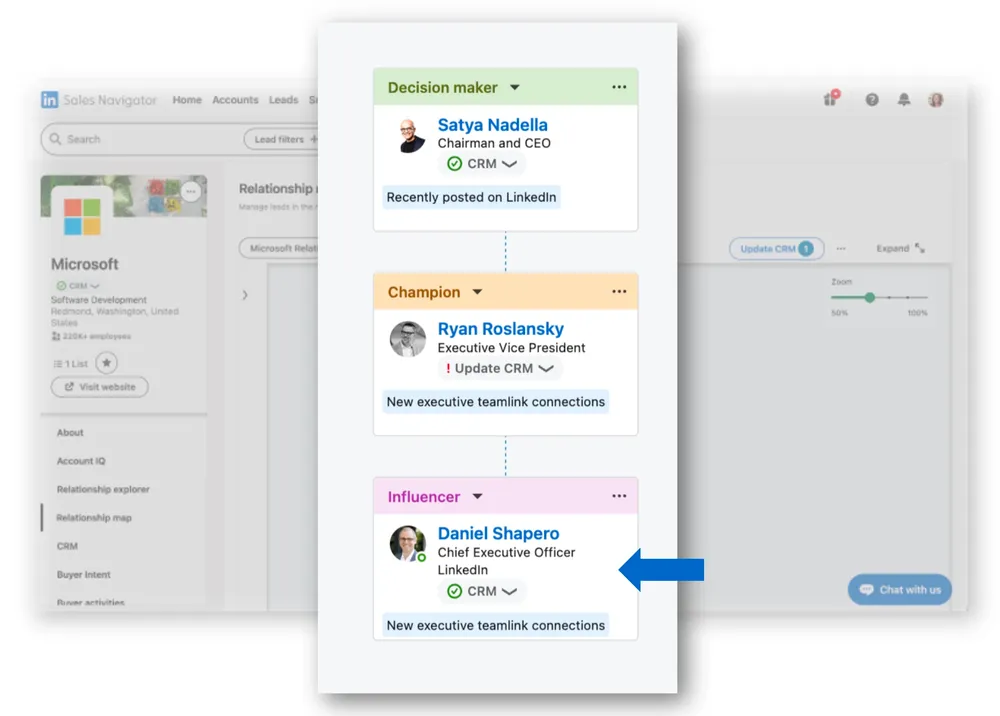
A new “All Leads” tab appears in the left rail of Relationship Map (next to the existing saved leads and lead recommendations). It works like this:
- Clicking “All Leads” opens a search view of all your saved leads from all companies — exactly the same pool you could previously filter under My saved leads.
- Once you find a person from another company, you can drag and drop them directly onto the current relationship map.
- The lead count limit still applies (30 per map), but the companies they belong to can be different.
- A lead from another company keeps all the standard Relationship Map metadata: role (Decision Maker, Champion, Evaluator, Procurement, Influencer), Relationship Strength, notes, and LinkedIn Highlights.
Technically the change looks small, but it’s one of those tweaks that shifts how you think about the tool: the map stops being a portrait of an account and becomes a portrait of a deal.
Requirements, availability, and limitations
- The feature is available across all Sales Navigator versions (Core, Advanced, Advanced Plus) — same as Relationship Map itself.
- Bulk CRM actions from a cross-company map (saving contacts to the CRM with one click) still require Advanced Plus and the appropriate admin permissions (CRM settings enabled in Admin Settings).
- Sharing the map with colleagues on the same Sales Navigator contract works as before — all maps, including cross-company ones, can be shared and edited collaboratively (asynchronously).
- The mobile app does not support Relationship Map (neither the single-company nor the new cross-company version) — it remains a web-only and CRM-embedded feature.
- When a lead leaves a company, the map is flagged as “stale” and replacements are suggested — this works in both variants (single and cross-company).
How to use it — step by step
- Go to the target Account Page or open an existing Relationship Map.
- In the Relationship Map tab, click All Leads in the left rail.
- In the search box, type a name, keyword, or external company — results show all your saved leads across the entire pool, regardless of original company.
- Drag and drop the chosen lead onto the map. The lead is added to the map with their home company tag.
- Assign a role (Decision Maker / Champion / Evaluator / Procurement / Influencer) and relationship strength.
- Add a context note (e.g., “Technical advisor on the customer side — works for Company X as an external consultant”).
- Share the map with colleagues (Share) — your colleague will see the map together with the leads from other companies.
Business scenarios (the strongest use cases)
- Deal involving a system integrator. You’re selling enterprise software. Your main account is the end customer, but the actual decision blocker is a VP Engineering at the integrator firm recommending a specific solution. Until now you had to keep two separate maps or hold that person in notes. Now it’s one Relationship Map.
- Buying committee across companies in a holding group. A classic problem for European holdings: the decision is made in the parent company, the budget sits in subsidiaries, and the rollout happens in the group’s tech subsidiary. Each is a separate company on LinkedIn, but it’s one decision-making committee.
- Channel sales. Reseller + distributor + end customer — three companies, one decision path.
- Post-merger / post-acquisition deals. The acquirer and the acquired entity operate as separate organizations for many months, but the buying committee bridges both sides.
- Strategic partnerships where you co-sell with a partner and need to map relationships inside the partner’s organization too.
Practical tips for Sales Navigator trainers
- Teach this feature only after introducing the classic Relationship Map — otherwise the “map of one account” vs. “map of one deal” concept blurs in participants’ minds.
- Show the 30-leads-per-map limit — across multi-company committees this limit starts to bite, enforcing discipline: only the key players belong on the map, not every acquaintance.
- Show the “assign to colleague” logic in the cross-company context — an AE can assign integrator-side leads to their Channel Manager, even though they technically work on different companies.
- Teach that map notes travel with the map when shared — that’s the right place for context about cross-company relationships (“CTO at X is the former manager of CIO at Y”).
3. Share Account Searches
Background: what was missing
Sales Navigator has long allowed you to:
- save lead and account searches (Saved Searches) and receive weekly alerts for new results,
- share lead searches (Share lead searches).
The missing link was sharing account searches (Account Search) — lists of companies matching firmographic criteria (industry, headcount, headcount growth, annual revenue, technologies used, fortune list, recent activities, senior leadership changes, etc.). That gap was closed in the January–March 2026 update and is being further expanded in April 2026.
What this feature changes

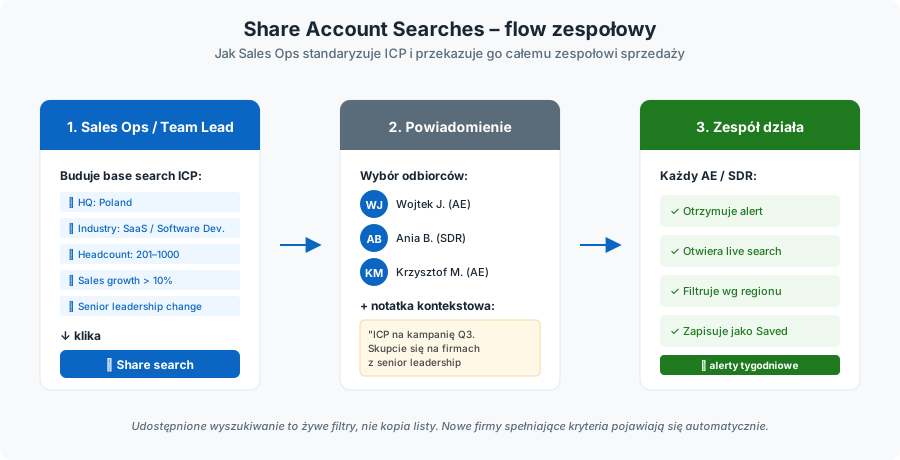
A “Share search” button has appeared in the filter panel of the Account Search page (at the bottom of the left filter panel). Clicking it opens a dialog where you:
- Pick one or more coworkers on the same Sales Navigator contract.
- Add an optional note (context — why you’re sharing it, what the colleague should focus on).
- Click Done.
The recipient gets an alert with a link that opens a search with preset filters — not a copy of a list, but a live filter set that queries current LinkedIn data. That’s important: if three new companies meeting the criteria are added to LinkedIn’s database tomorrow, your colleague will see them immediately.
Requirements and limitations
- Available across all Sales Navigator versions (Core, Advanced, Advanced Plus) — no admin role required.
- Limited to the same contract. You cannot share a search with someone outside your organization or with a person on a different, unconnected Sales Navigator account.
- Number of recipients per share — LinkedIn’s existing documentation does not publish a hard limit, but the UX suggests picking multiple people in one dialog. Practical recommendations from the Sales Solutions blog suggest sharing with teams of 5–15 people, not the whole organization.
- Web only — the feature does not appear in the mobile app (the mobile Sales Navigator has a stripped-down account search with limited filters).
- A shared search is not the same as a Saved Search — it’s a separate object. The recipient, if they want, has to save it on their side to receive weekly alerts.
Step-by-step instructions
- Sign in to Sales Navigator.
- From the home screen, click Account filters or type a company-related phrase in the search bar.
- Configure filters (e.g., Headquarters location: United States, Industry: Software Development, Headcount: 201–1000, Annual revenue: $10M–$100M, Department headcount growth: Sales > 10%).
- Check the results in the right panel — make sure the list looks reasonable (ideally 50–500 results).
- At the bottom of the left filter panel, click Share search.
- In the dialog, pick recipients (people on the same contract).
- Write a note — e.g., “List for John and Anna: ICP for the Q3 campaign, focus on companies with a senior leadership change in the last 90 days.”
- Click Done.
- The recipient gets an alert and can jump straight to the search.
Best practices
- Standardize “base searches” in the team. One person (Sales Ops, Team Lead) builds a precise base search of the ICP and shares it with the whole team. Each AE/SDR adapts it (e.g., adding a sales region filter).
- Combine with Account Lists. Account Search plus sharing is a powerful ABM combo. One person searches → shares with the team → each person saves the relevant companies into their Account Lists → automatic Buyer Intent alerts on those accounts.
- The note is mandatory. A search without context goes straight to the trash. Spend 30 seconds explaining “why” and “what to do with this”.
- Pair with Share Lead Searches. One flow: share an Account Search with companies matching ICP. Another flow: share a Lead Search with personas inside those companies. Together they make a complete starter pack for a new SDR on the team.
- Refresh regularly. Filters age (e.g., LinkedIn industry classifications can shift due to taxonomy changes). Each quarter, review and re-share the updated version.
What these changes tell us about Sales Navigator’s direction
Looking at the whole April 2026 update, the logic is clear:
- More team-oriented usage. All three features lower the barrier to collaboration: Cross-Company Map connects AEs and Channel Managers, Share Account Searches connects SDRs and AEs, and the Who Viewed My Company Page filter ties marketing and sales around a shared intent signal.
- Tighter integration of intent signals into search. The new filter pulls Buyer Intent down from Advanced/Advanced Plus into Core — LinkedIn evidently wants buyer intent to be mainstream, not a premium add-on.
- Privacy-conscious design. The opt-in clause for Who Viewed My Company Page shows that LinkedIn is still balancing “give salespeople more data” against “don’t break user trust”. That’s a healthy regulatory signal, particularly in the EU and the GDPR/DSA context.
- AI in the background. None of the three features is an “AI feature” in the generative sense, but all three play well with the existing Account IQ, Lead IQ, and Relationship Explorer. Cross-Company Relationship Map especially shines when paired with Account IQ, which automatically summarizes accounts across companies in a group.
These features are not yet widely discussed in much of the European LinkedIn community. That opens a clear educational niche for people running Sales Navigator training: a content-first window in a market where practitioners are looking for hands-on guidance.
30-day rollout plan
If you run consulting or training engagements, here’s a ready-to-use rollout plan for these three features over four weeks:
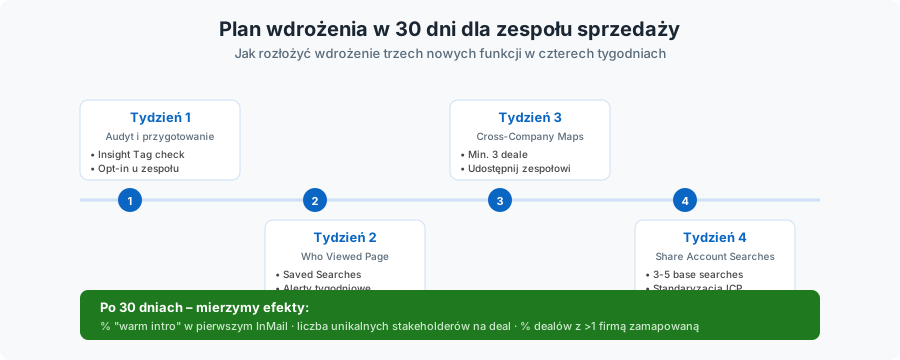
Week 1. Audit the client’s company pages — check whether they have the LinkedIn Insight Tag installed (a precondition for full Buyer Intent) and how their company page looks. Review privacy settings across the sales team (who has page visibility opt-in turned on — encourage the team naturally, but without pressure).
Week 2. Workshop on the Who Viewed My Company Page filter. Each rep builds their own base saved search combining this filter with the ICP. Set up weekly alerts.
Week 3. Map at least three current deals onto new Cross-Company Relationship Maps (especially deals involving integrators, partners, or external advisors). Each map is shared with the entire sales team and the technical account owner.
Week 4. Sales Ops / Team Lead builds 3–5 reference Account Searches matching the key ICPs. Shares them with the team via Share Account Searches. Each AE/SDR saves them on their side.
After 30 days: measure the results — number of “warm intros” in the first InMail, number of unique stakeholders per deal (target: 5+, in line with Gartner’s 11-person committee benchmark), share of deals with more than one company mapped in Relationship Map.
Want to roll this out in your team?
In my LinkedIn Sales Navigator training, we drill these features live on your account — from configuring Buyer Intent filters, through building a cross-company Relationship Map for your most important deal, to reference Account Searches for your sales team.
LinkedIn Sales Navigator — product pageSources
September 2026 release:
- LinkedIn Sales Navigator release notes, July to September 2026
- Sales Navigator for Microsoft Teams
- Lead IQ in CRM Embedded Experiences
- Sales Navigator alerts
Official LinkedIn release notes and documentation:
- Share account searches in Sales Navigator (how-to article with screenshots)
- Share lead searches in Sales Navigator (analogous article, useful context for UX comparison)
- Search for leads and accounts in Sales Navigator
- Sales Navigator lead and account filter definitions
- Relationship Maps in Sales Navigator Account Pages
- Relationship Maps in Sales Navigator FAQ (limits of 30 leads / 5 maps, no mobile, roles)
- Relationship Map in CRM Embedded Experiences (Salesforce/Dynamics/HubSpot)
- Buyer Intent in Sales Navigator (overview of 180+ signals)
- Sales Navigator Buyer Intent FAQ (opt-in and privacy details)
- LinkedIn Page visit visibility (context article on opt-in)
This article is based on publicly available LinkedIn Sales Navigator documentation, official release notes from the Help Center, materials from the LinkedIn Sales Solutions blog, and secondary industry sources. Some implementation details (e.g., the exact placement of the “Share search” button on the filter panel, or the position of the “All Leads” tab on the Relationship Map) may be subject to minor UX adjustments LinkedIn introduces during the gradual rollout. Diagrams (Fig. 1–5) — author’s graphics based on the LinkedIn Sales Solutions press release from April 2026.
Maybe we can do something together?
If you like what I write, maybe I can write something for you?