New Sales Navigator Feature — Share Account Searches
LinkedIn has just rolled out the option to share Account searches with your team, directly in Sales Navigator. Useful feature — but I have one question: why did it take so long, when the identical option for Lead searches has been there forever? I show how it works, which licenses it's available in, and what I think about it.

Rafal Szymanski
I implement LinkedIn and Sales Navigator in companies so they turn a profit.
I've been training people in LinkedIn since 2016 — more than 5,000 of them, across 200+ B2B companies. Founder of B2B Marketing.AI, a CRM platform for advanced LinkedIn users. I help sales and marketing teams turn LinkedIn into a predictable source of leads. I've spoken about LinkedIn at the biggest conferences, including I Love Marketing, InfoShare and Effie, and picked up a few awards along the way.
Published On Updated On
I came across news announcing a freshly shipped feature: sharing Account searches with your colleagues — directly inside Sales Navigator. No more rebuilding the same company list from scratch and explaining over the phone which combination of filters to set. It’s genuinely useful in day-to-day work, so I tested it right away and I’m writing it up. I actually flagged this back in May, in my rundown of LinkedIn Sales Navigator 2026 features — and it’s finally here.
In this article you'll learn:
- what exactly the new Share Account Searches feature changes and who benefits from it;
- how to share an Account search step by step — live and from saved searches;
- practical use cases for Share Account Searches;
- which Sales Navigator licenses include the feature (and which one doesn’t — and why that actually makes sense).
What changed
Until now, in Sales Navigator you could build a precise Account search — by headcount, headquarters location, industry, buyer intent and a dozen other filters — but unfortunately the result of that work stayed with you only, even on licenses that allow data sharing.
Now, with a single click you send the entire search with the filters already applied to selected people on your Sales Navigator contract. The recipient gets a notification, opens the search with the filters pre-applied and starts working straight away. Nothing to set up by hand, nothing to guess.
Before we get into the details, watch the guide on how to use Share Account Searches in Sales Navigator (with Polish and English subtitles, selectable in the player):
How Share Account Searches works, step by step
The whole process is dead simple; below I walk you through it step by step with a preview of the interface.
1. Start with Account filters. On the Sales Navigator homepage choose Account filters or simply type a company name into the search bar.

2. Narrow down the results and click “Share search”. Use filters such as Company Headcount, Headquarters Location, Industry or Buyer Intent (if you’ve set it up — and it’s worth doing) to build exactly the list you’re after. Once the search is ready, you click Share search in the bottom-left corner of the filters panel.
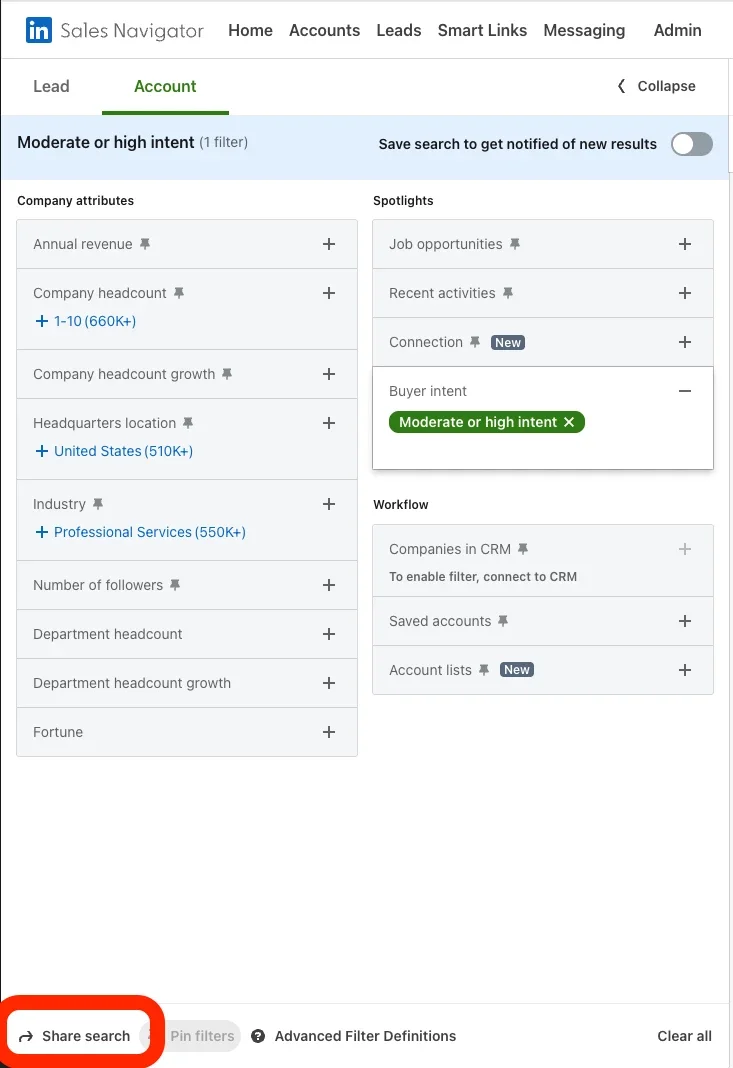
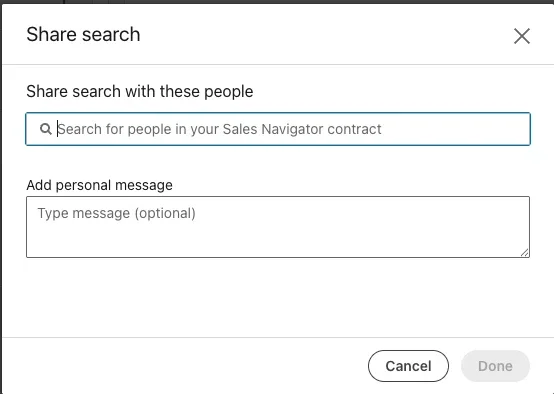
3. Pick recipients and add a note. In the dialog you select one or more people from your Sales Navigator contract, add a short message (optional, but worth it — more on that below) and click Done. Your colleagues get a notification with the ready-made filters and jump into the list with zero configuration.
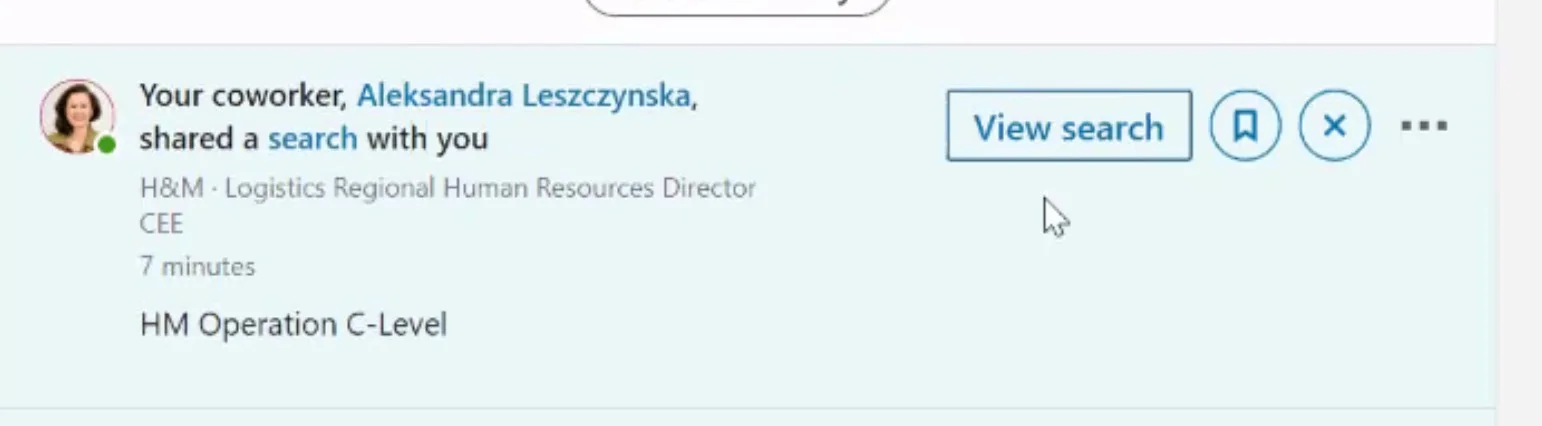
The person you sent the search to receives it as a notification, and your note becomes the body of that notification — so they’re unlikely to miss it.
And how do you share a saved search? If you already have a search saved, click Saved searches at the top of the homepage, then the share icon next to the chosen search, look up people, add a note and confirm with Done. A small tip: save the search first, then share it — that way you turn it into a template that becomes the basis for further work, and you don’t have to click everything through from scratch each time.
Why did it take so long?
I have to write this or I’ll burst. I’m glad the feature is here, but let me gently ask: why did shipping such a trivial feature take LinkedIn so long? After all, the identical option for Lead searches has existed in Sales Navigator practically forever. The mechanics are the same — you pick filters, click “share”, choose recipients from the contract, add a note. The only difference is the object of the search: people one time, companies the other. I’m a developer and I know what reusing an existing module is; it’s no “rocket science”.
It was genuinely irritating from a Sales Navigator user’s perspective: you could share a list of LEADS, but not a list of ACCOUNTS — even though in B2B sales working at the account level (ABM, i.e. account-based marketing) is the standard. LinkedIn’s explanation, that they bet on Social Selling and that building Relationship Manager-style filters matters more to them, I take note of, but I disagree. Plenty of companies still work in an ABM model because that’s how they have their processes set up, how their data is split in the CRM, or simply how they divide clients vertically (e.g. by industry) or horizontally (e.g. by regions of the country).
Which licenses it works in
An important practical note before you rush off to test it: sharing Account searches is available in the Sales Navigator Advanced and Advanced Plus licenses — and it’s not in Core.
And this one I fully understand. Core is a single-person license — it has no team layer, so a “share with colleagues on the contract” feature simply wouldn’t have anyone to send anything to. Sharing searches is a team feature by definition, which is why its home is in the Advanced (formerly Team) and Advanced Plus (Enterprise) plans, where a single contract holds many users. So if you’re on Core and don’t see the “Share search” button — it’s not a bug, it’s a matter of the plan.
You can work around it, of course, because in a sales org reps are often given several Core licenses (cheaper than the better Advanced ones). How much cheaper, and when the Advanced upgrade pays off, I calculated in the Sales Navigator pricing guide.
Use cases for “Share Account Searches” in Sales Navigator
A few places where I’d use this feature:
- SDR Manager → team: “Here’s our target account list for this quarter” — one search, everyone works from the same set of companies but changes one variable each so their work doesn’t overlap. Handy for tying into the CRM and reporting. Bonus: these searches can probably be prepared by a pre-sales person rather than the SDR themselves.
- Account Executive → SDR: handing over a polished list of accounts matching the ideal customer profile (ICP), without describing the filters in words. Bonus: I won’t send you a two-page Word doc with the ICP for you to reverse-engineer — I’ll just send the ready-made search.
- Sales leader → region: building and monitoring an expansion list (e.g. all companies with 500+ employees in a given industry) across the whole territory. Bonus: I’d assume the regional lead has all the companies mapped out, and a saved search like this will show them when new ones — ones they don’t know about — appear.
- Onboarding a new rep: instead of explaining “how we search for companies here”, you hand over ready, proven searches — probably left by the previous rep — and the new person gets going from day one.
One more thing from practice: in the note attached to the share, write not just the “what” but also the “why” — what action the recipient should take (review it, add it to the CRM, start outreach). Just sending a list with no context usually ends up nowhere, like an email forwarded to 16 people on your team.
Summary
The new Share Account Searches in Sales Navigator is a simple but sensible feature: no more rebuilding the same company lists and dictating filters over the phone, or shipping them around in Excel for tedious copy/paste. It closes a gap that, in my opinion, shouldn’t have existed for so long, given that the twin option for people searches has been available for ages. It works in the Advanced and Advanced Plus licenses, and its absence in Core makes sense — though it can be worked around anyway.
If you work as a team on Sales Navigator — go in, build one solid Account search, save it and share it with the team. Or appoint someone to act as pre-sales, preparing ready-made Account or Lead searches for the team and coordinating so the results don’t overlap.
If you want your whole team working in Sales Navigator this way, I run Sales Navigator training for B2B teams — 80% of the time is hands-on work in your own accounts on real leads, not a slide deck.
How can I help you or your company?

LinkedIn Sales Navigator Training for Teams
Hands-on Sales Navigator workshop for B2B sales and marketing teams. Live exercises on your accounts, prospecting strategies, and real pipeline results. +47% leads in 3 months.
Read More
B2B Social Selling Training on LinkedIn
B2B social selling training: Account Based Marketing, Sales Navigator, MQL-to-SQL pipeline. For teams of 5+. 80% hands-on exercises on your accounts.
Read More