Logging Notes and Calls to the CRM in Sales Navigator: A New Admin Toggle
A Sales Navigator Advanced Plus admin can now turn logging of notes and calls to the CRM on or off for the whole team with a single toggle. A small change, but an important one for keeping the CRM in order.

Rafal Szymanski
I implement LinkedIn and Sales Navigator in companies so they turn a profit.
I've been training people in LinkedIn since 2016 — more than 5,000 of them, across 200+ B2B companies. Founder of B2B Marketing.AI, a CRM platform for advanced LinkedIn users. I help sales and marketing teams turn LinkedIn into a predictable source of leads. I've spoken about LinkedIn at the biggest conferences, including I Love Marketing, InfoShare and Effie, and picked up a few awards along the way.
Published On

In this article you’ll find a description of the new admin settings in Sales Navigator Advanced Plus from September 2026: the toggles an admin uses to turn logging of notes and calls to the CRM on or off for the whole team, and the neighboring options on the same settings page.
In my opinion this will be a useful option, because until now every seller had to do it at the level of their own account, which led either to chaos or to gaps in the data, since someone always forgot something or didn’t switch it on.
In this article you'll learn:
- what a Sales Navigator Advanced Plus admin can now set;
- which kinds of activity reach the CRM and how to control it;
- who has access to these settings.
What changed in the admin settings
An admin can now turn logging of notes and calls to the CRM on or off for every user from a single settings page. In the settings these are two toggles: “Log calls” (users can log calls with contacts to the CRM) and “Log notes” (users can log notes to the CRM).
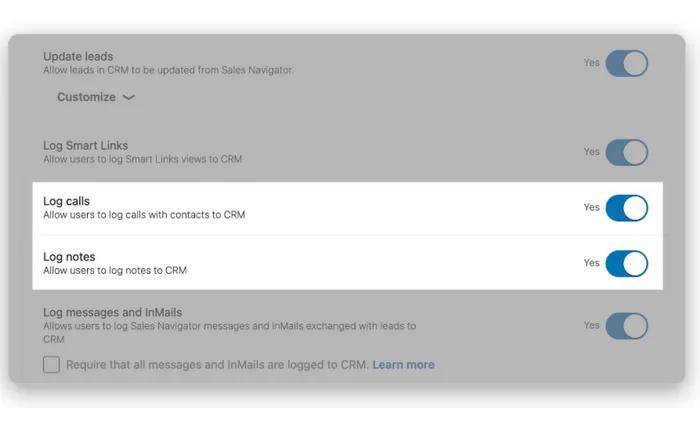
Why does an admin need this? Because the decision about what goes into the CRM stops depending on the habits of individual sellers.
What else is on this settings page
LinkedIn’s graphic shows the neighboring CRM export options next to the new toggles:
- “Update leads”, meaning leads in the CRM get updated with data from Sales Navigator;
- “Log Smart Links”, meaning Smart Links views are logged to the CRM;
- “Log messages and InMails”, meaning messages and InMails exchanged with leads are logged, with the option “Require that all messages and InMails are logged to CRM”.
Is all of this new? No. The September release adds the toggles for notes and calls, while the other options were already in the CRM export settings.
Who has access to these settings
Only the admin of an Advanced Plus license. Why not Advanced? Because logging activity to the CRM requires full CRM sync, and that is Advanced Plus only (Advanced has just partial sync, with HubSpot and Microsoft Dynamics). You open the settings from the top menu in Sales Navigator: Admin, then Admin Settings.
A full overview of the September release, including a table of availability by license, is in the post on Sales Navigator 2026 features. In my Sales Navigator training we go through the admin settings together with the person responsible for the CRM.
The whole series on the September Sales Navigator release
Sources
Frequently asked questions about CRM activity logging in Sales Navigator
Maybe we can do something together?
If you like what I write, maybe I can write something for you?