Sales Navigator Search 2026: Describe the Buyer, Not Just Keywords
In September 2026 LinkedIn rebuilt Sales Navigator search: it understands a buyer description, reads job levels more accurately, ranks active people higher and no longer ends on an empty page. It works on every license.

Rafal Szymanski
I implement LinkedIn and Sales Navigator in companies so they turn a profit.
I've been training people in LinkedIn since 2016 — more than 5,000 of them, across 200+ B2B companies. Founder of B2B Marketing.AI, a CRM platform for advanced LinkedIn users. I help sales and marketing teams turn LinkedIn into a predictable source of leads. I've spoken about LinkedIn at the biggest conferences, including I Love Marketing, InfoShare and Effie, and picked up a few awards along the way.
Published On

In this article you’ll find the changes to Sales Navigator search that LinkedIn announced on September 22, 2026: intent-based search instead of typed keywords alone, more accurate seniority and function filters, a new ranking of best-fit leads, and what happens when a search returns no results. All of these changes are on every license, from Core to Advanced Plus.
I’m not sure whether to be happy about this change, because… it will take away my Sales Navigator training clients, and I can throw all my clever combinations of filters and wrong-title exclusions in the bin. Then again, no: for now expert knowledge still works better than LinkedIn’s AI.
In this article you'll learn:
- what it means that Sales Navigator search understands intent;
- how the seniority and function filters have changed;
- how Sales Navigator now orders the results;
- what it does when a search would return zero leads;
- what we still don’t know about these changes.
Intent-based search: what changed
Until now Sales Navigator search worked on keywords and Boolean operators. Most people tripped up on that: they typed a job title in their own language, say the Polish “dyrektor zakupów”, and got people who had those exact words on their profile, while anyone who wrote “Head of Procurement” dropped out.
Admittedly, things got better after 2024, when LinkedIn introduced the Skills Graph, its methodology for grouping job titles and people with AI: if you typed “Marketing Director”, it also showed results for “Head of Marketing”. But it’s still far from perfect.
Now, according to LinkedIn, you describe the buyer you are looking for, and Sales Navigator finds people who match the meaning of the description, not just profiles that contain your words. The help article adds that results can include variations of the words you typed.
Does that mean filters are no longer needed? No, because a description narrows results less precisely than a company or geography filter and, from what I see, for now it causes more trouble than it’s worth.
An example: I set the filters to one industry and a narrow choice of roles. Good practice, apart from special exceptions such as “Fleet Manager”, is not to type exact job titles, but rather to pick the function and seniority level, look at what shows up, and then remove the bad matches, building yourself an exclusion dictionary.
Here is an example of my search showing people who recently changed jobs and match my ideal customer profile (ICP). The exclusion filter is 48 keywords.
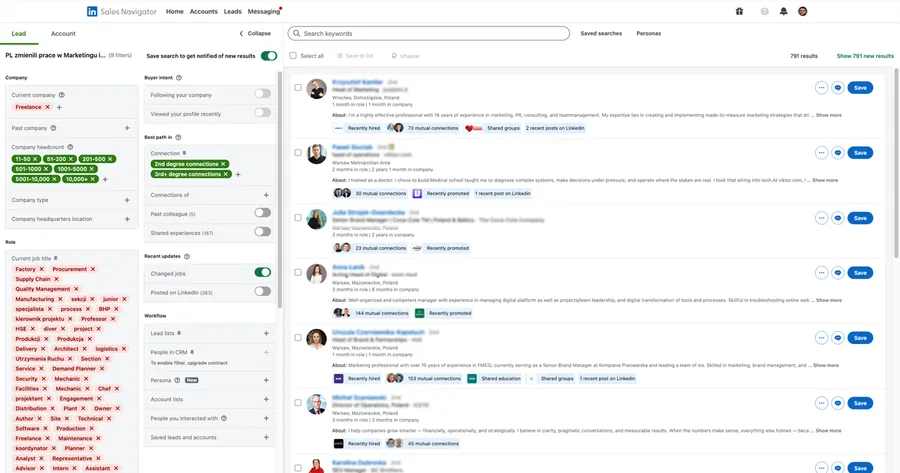
The result is deliberately narrow, so that I get mostly correct data straight away. In the new version of search, Sales Navigator loosens these filters for me and throws in more people who, in its view, fit. Except I don’t want them.
More accurate seniority and function filters
LinkedIn says search now reads seniority and function with over 30% better precision. The example: a search for vice presidents in operations is supposed to return vice presidents in operations, not everyone who has one of those words on their profile.
Where does the 30% come from? LinkedIn doesn’t share the methodology, so I treat the figure as a vendor claim. So far in my tests, when I pick VP + Operations it still shows me, as before, an Executive Assistant. I get that in American corporations such an assistant is the most important person, guarding access to the CEO’s calendar and office, but for years Sales Navigator insiders at meetups have been asking to change this.
Result order: best fits on top
How does Sales Navigator order results now? According to the announcement it weighs three things: who someone is, how active they are (on LinkedIn, of course) and how they respond to sellers, read: whether they react to InMails. So the top of the list should be people who match your search and also respond to messages. All in all, if it really works like that, great.
In my view this changes the point of scrolling to further result pages. The first page is no longer a random slice but Navigator’s pick, and LinkedIn doesn’t show how much each of the three factors weighs. Since until now it also wasn’t clear how results are ordered, or why you can’t sort them when you can filter them, I’m sceptical and will keep recommending exporting the results to your CRM or Excel and sorting them there. If you don’t know how to do that, at my company, B2B Marketing.AI, we have ready-made solutions for it.
No more empty results
What happens when a search would return zero leads? Instead of an empty page, Sales Navigator relaxes the filter that blocks results, tells you which filter it changed and shows the closest matches. The intent of the search is supposed to stay intact. The Edit filters button takes you back to your original settings.
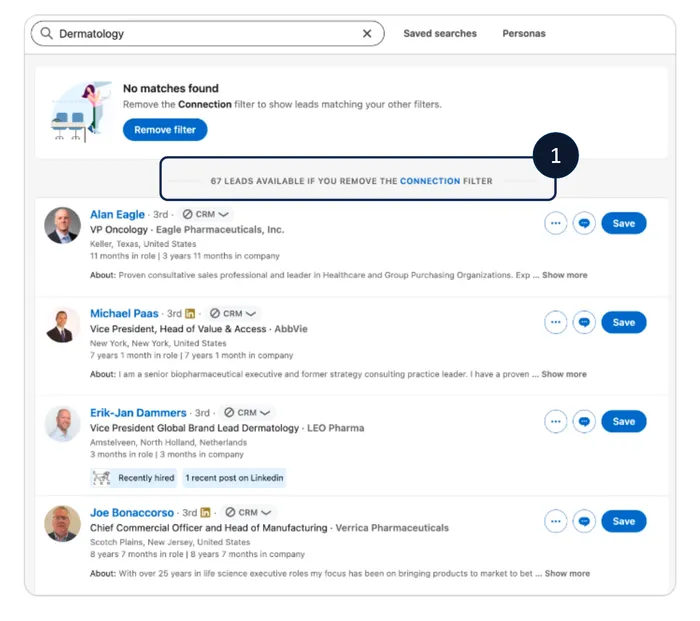
LinkedIn’s graphic shows it literally: “No matches found”, a button to remove the Connection filter and a note that without it 67 leads are available. LinkedIn says the share of searches with no results dropped from 14% to 8%.
Is it a good change? For a beginner, yes, because they are not left with an empty screen. But anyone who builds a narrow search on purpose has to keep an eye on whether they are looking at their own results or at results with a loosened filter.
For now I’m sceptical, because I think it is a forced way of showing that there is more data in the system than there really is. And really, when I want to find a sales director, I don’t want it to show me a Head of Procurement.
What we still don’t know
A few things LinkedIn didn’t say:
- whether intent-based search works in languages other than English (my tests show that it does);
- how much each factor weighs in the new result ranking;
- whether the loosened filter also changes the results of saved searches and their alerts, because if it does, we’re in deep tr…
You can hand a well-built search over to your team, which I write about in the post on sharing account searches. A full overview of the September release, together with the license availability table, is in the post on Sales Navigator 2026 features. In the Sales Navigator training we build searches on your own account and check what’s left of them after the new changes.
The whole series on the September Sales Navigator release
Sources
Frequently asked questions about the new Sales Navigator search
Maybe we can do something together?
If you like what I write, maybe I can write something for you?