Sales Navigator Alerts After the Update: Deal Priority and a New Weekly Email
In September 2026 LinkedIn rebuilt Sales Navigator alerts: leads tied to open opportunities rank higher, one active lead no longer clogs your notification list, and the weekly email draws on 22 alert types instead of 13.

Rafal Szymanski
I implement LinkedIn and Sales Navigator in companies so they turn a profit.
I've been training people in LinkedIn since 2016 — more than 5,000 of them, across 200+ B2B companies. Founder of B2B Marketing.AI, a CRM platform for advanced LinkedIn users. I help sales and marketing teams turn LinkedIn into a predictable source of leads. I've spoken about LinkedIn at the biggest conferences, including I Love Marketing, InfoShare and Effie, and picked up a few awards along the way.
Published On

In this article you’ll find a description of the changes to Sales Navigator alerts in the September 2026 release: priority for leads tied to your open opportunities, consolidated updates from a single lead, a rebuilt weekly email with 22 alert types instead of 13, and the toggles without which job change alerts never arrive at all.
What’s nice about Sales Navigator alerts is that once you save a contact as a lead, you get notified about what they do. That way you won’t miss a post from that lead from two days ago, which in regular LinkedIn would have sunk in the feed and you would never have seen it. Your like or comment is worth something then, and you in turn don’t waste time scrolling LinkedIn to check whether someone has written something. The problem starts, though, when you add as a lead an account that posts non stop. Right now an account like that takes over practically all your notifications, and they stop working the way you planned.
LinkedIn seems to have noticed, and has made another change that looks small but matters.
In this article you'll learn:
- what changed in Sales Navigator alerts in September 2026;
- how alert priority for leads in open deals works;
- what you get in the new weekly email;
- which toggles to turn on to get job change alerts;
- where else alerts arrive outside Sales Navigator itself.
What changed in Sales Navigator alerts
In its September 22, 2026 announcement LinkedIn lists three changes: alerts ordered by your deals, consolidated updates from a single lead, and a new weekly email. According to the availability table, all of them are on every license, from Core to Advanced Plus.
Why all this? Sales Navigator alerts have one problem: you save a hundred leads and get so many notifications that you stop reading them. Besides, not all leads and notifications matter equally to you. The September changes are meant to filter out that noise.
Alert priority for leads in open deals
LinkedIn calls these pipeline-priority alerts. Sales Navigator reads your CRM and ranks alerts about leads tied to your open opportunities higher, taking into account recent deal activity and deal value. The way LinkedIn puts it, your live deals stop competing for attention with every other saved lead.
Who gets it? Here’s the catch. The feature reads the CRM, and full CRM sync (Salesforce, HubSpot, Microsoft Dynamics, Oracle) is on the Advanced Plus license. Advanced has only partial sync, with HubSpot and Microsoft Dynamics. The availability table lumps all the alert improvements into one row ticked for every license. But without a CRM this change has nothing to read.
Over the next few days I’ll check whether it works on the lower licenses, because the documentation doesn’t say.
Consolidated updates from a single lead
If you saved someone who posts every day, until now they could take up half your alert list. Now updates from a single lead are consolidated, so the list covers more people from your book of business instead of one chatty author.
Does it change anything? For a seller who saved a few active creators next to quiet decision makers, yes, because the quiet ones stop getting lost.
This change suits me very well and solves one big problem. Everyone I train on Sales Navigator gets the same suggestion from me: build yourself several lead lists.
- Current pipeline: obvious.
- Current customers: because you want a good relationship with them, and your like or comment really does matter.
- Competitors: because you can keep up with what they do without visiting their accounts and looking like a stalker. Provided, of course, you follow a few tips on how to stay invisible while doing it.
- VIPs, trade journalists and key opinion leaders in your industry: because you want to keep up with the industry and have it all served on a plate. After all, that’s why you pay for the Sales Navigator license, so you don’t have to scroll.
And here’s the thing: the last two groups matter and you want to know what they’re up to, but their activity and notifications can bury your prospects and current customers. This feature fixes that with a single switch.
A new weekly email with 22 alert types
The weekly catch-up email collects the alerts you didn’t see in Sales Navigator. After the rebuild it draws on 22 alert types instead of 13. It orders them by what users actually click, and each card takes you straight to the alert.
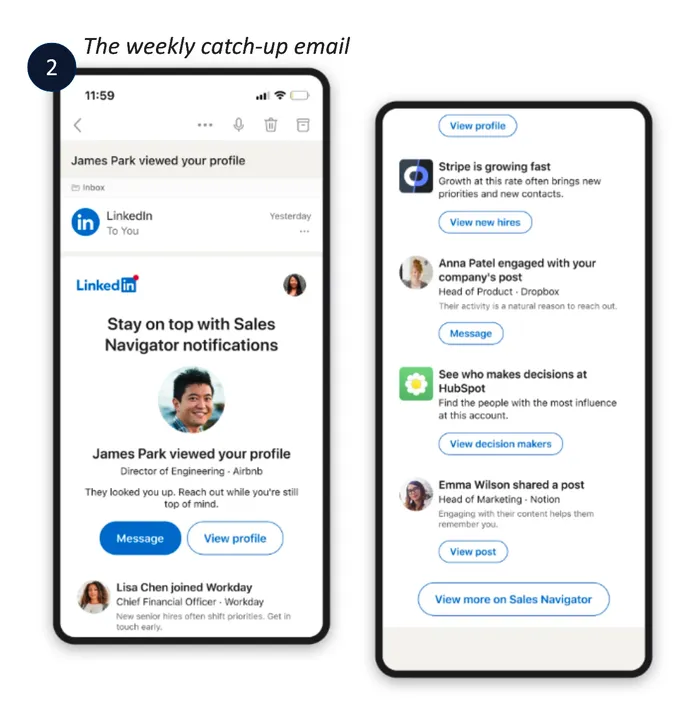
LinkedIn’s graphic shows what can end up in it: who viewed your profile, a new executive at a company, a fast-growing company, someone engaging with your company’s post, decision makers at an account and a new post from a lead. Each card has its own button, for example “Message”, “View new hires” or “View decision makers”.
There is no new documentation page yet describing each of those 22 alerts, but judging by the suggestions I’m seeing, they are on target.
Which toggles to turn on to get job change alerts
Why might an alert about a saved lead changing companies never arrive? Because you have to turn it on. The help article on alerts lists three toggles in Sales Navigator settings:
- on the email notifications tab: Top Weekly Notifications;
- on the in-product notifications tab, in the section about saved lead activity: A lead started a position at a new company;
- in the same section: A lead started a position at the same company.
The first one drives the weekly email, the other two the alerts about a lead moving to a new company or changing roles within the same company. And remember that alerts only work for saved leads and accounts. If you don’t save someone, you won’t hear about them.
Where else alerts arrive
According to LinkedIn’s documentation, you get Sales Navigator alerts:
- on the Sales Navigator homepage;
- in the Sales Navigator mobile app (yes, there is one, and it is not the LinkedIn app);
- in LinkedIn notifications, on every license since September 2026: a saved lead being promoted or changing companies, a senior hire at a saved account (or an account from your CRM) and new results for a saved search;
- in the embedded view in HubSpot, Microsoft Dynamics 365, Oracle Sales, Salesforce, Freshworks and Gong (Advanced Plus only);
- in Microsoft Teams, if an admin has installed the Sales Navigator app (Advanced Plus only).
A full overview of the September release, with a table of availability by license, is in the post on Sales Navigator 2026 features. In my Sales Navigator training we set up alerts and lists so they don’t bury the team.
The whole series on the September Sales Navigator release
Sources
Frequently asked questions about Sales Navigator alerts
Maybe we can do something together?
If you like what I write, maybe I can write something for you?